UK Passport Photo Code: Does It Guarantee HMPO Acceptance?
Entering a UK passport Photo Code into your online application does not guarantee HMPO acceptance. Learn how the two-stage verification works—from the automated GOV.UK algorithm to manual caseworker review—and how to handle photo warnings or replacement requests.
If you have ever stood inside a high-street photo booth or purchased an online photo code, you have probably seen bold claims plastered across the screen: "100% Guaranteed HMPO Acceptance" or "Official Government Approved Photo Code."
It sounds reassuring, especially when you are anxious about passport processing delays. But let's be plain: no commercial provider, photo booth operator, or digital service can guarantee that HM Passport Office (HMPO) will accept your photo.
A UK passport Photo Code does not constitute an approval. It is simply a digital retrieval key. It tells the GOV.UK system where to fetch your image from a secure cloud server so you do not have to fiddle with manual file uploads. Once that image arrives on the government website, it must clear two independent verification hurdles: an immediate algorithmic check, followed days later by a thorough manual review by a human HMPO examiner.
Understanding the divide between these two stages—and knowing how to interpret the feedback from the automated tool—can save you weeks of frustrating administrative delay.
The Direct Answer: Does a Photo Code Guarantee Passport Acceptance?
No. A UK passport Photo Code does not guarantee acceptance by HMPO.
When a photo booth, retailer, or independent service generates a code, they are using private software to capture, format, and host your picture. Many reputable tools run internal checks against published HMPO guidelines to filter out blatant flaws like poor lighting, tilt, or low resolution. That pre-screening is helpful, but it carries zero legal or administrative weight with His Majesty's Passport Office.
Only HMPO caseworkers possess the statutory authority to approve or reject a photograph submitted in support of a British passport application.
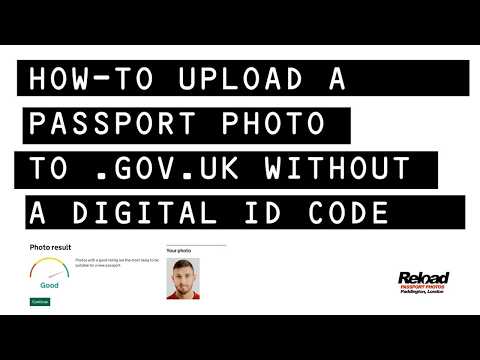
Code vs Digital File vs Approval: Untangling the Terminology
Applicants often conflate distinct parts of the digital application process. Keeping these concepts clear will help you troubleshoot if something flags an alert:
- A Photo Code: An alphanumeric string (for example,
4A7B-9X2Y-Z81K) issued by a photo provider or booth. It serves purely as an address bookmark. When entered into the official portal, it pulls your photo from the provider's server into your online passport application. - A Downloadable Digital Photo File: An image file (typically a
.jpgor.jpeg) stored directly on your phone, tablet, or computer. You can upload this file directly to GOV.UK without using a code at all. - A Passport Application Reference: A tracking number (usually starting with
PEXor numeric) assigned by HMPO after you complete your application and pay the statutory fee. - Automated Photo Checker Result: An instant mathematical scan performed by the GOV.UK website the moment your photo is fetched or uploaded. It rates your photo as Good, Acceptable, or Fair, and highlights potential problems.
- Official HMPO Photo Acceptance: The final, binding decision made by a human passport examiner who reviews your overall application, identity documents, and photographic likeness during back-office processing.
If you prefer to avoid the high street, you can prepare an image at home. Services like Passport Photo Code automatically prepare your image to meet UK digital passport photo specifications, run automated checks for common photographic faults, and give you both a downloadable digital file and a Photo Code to enter on GOV.UK—completely free, without requesting payment details.
Where and How to Enter a Photo Code on GOV.UK
Whether you are completing an adult passport renewal or applying for a first adult British passport, you will encounter the photo stage relatively early in the online application flow on the official GOV.UK passport services portal.
Here is how the process works step-by-step:
- Select Your Submission Method: When you reach the screen titled "How do you want to get your digital photo?", you are presented with two main options: "I have a code" or "I want to upload a photo".
- Input Your Code: Select "I have a code". A text box appears. Carefully type your code. These codes are not case-sensitive on GOV.UK, but double-check characters that look alike, such as the letter
Oand the number0, orIand1. - Fetch the Image: Click "Continue". The GOV.UK system connects securely to the hosting server where your photo is stored, retrieves the file, and renders it on your screen.
- Confirm Identity: The portal asks: "Is this your photo?" Confirm that the face shown is indeed yours and that the file has rendered without visible pixelation, distortion, or incorrect rotation.
Checking Your Retrieved Image on Screen
Before you click past this screen, look at the rendered image critically. Occasionally, a mistyped code or server caching quirk could pull up an older photo or an image belonging to a family member if multiple photos were generated on the same machine.
Check three elements immediately:
- Upright Orientation: The photo must be oriented vertically. If the code somehow retrieved your image sideways or upside down, do not proceed; clear the code and upload the file manually.
- True Proportions: Ensure your face does not look stretched horizontally or squashed vertically. Aspect ratio distortions trigger automatic rejections during caseworker scrutiny.
- Clarity: Make sure the image on your computer or mobile screen is sharp. If your eyes appear soft, blurry, or noisy, an examiner will almost certainly reject it later.
Stage 1: How the Automated GOV.UK Photo Checker Works
The moment your photo appears on GOV.UK, the site runs an automated algorithmic scan. This is Stage 1 of the verification process. The algorithm evaluates your picture against a specific set of mathematical rules codified under HMPO photo standards.
Photo Source (Booth / Home / Online)
   │
   ▼
[Entered on GOV.UK via Photo Code or Upload]
   │
   ▼
[Stage 1: Automated Algorithmic Checker]
   ├── Good / Acceptable ──► Safe to proceed
   └── Fair / Warning ─────► Review Decision Matrix (Override vs Retake)
   │
   ▼
[Submission & Payment]
   │
   ▼
[Stage 2: Manual HMPO Human Caseworker Review]
   ├── Approved ──────────► Passport Printed & Dispatched
   └── Rejected ──────────► SMS/Email Request for Replacement Photo
The Mathematical Gates: Pixels, File Size, and Framing
The automated checker measures your photo against strict digital parameters:
- Pixel Dimensions: The uploaded image must be at least 600 pixels wide by 750 pixels tall. If it falls below 600 × 750, the system rejects it instantly with a hard error and will not allow you to continue.
- File Size: The file must be between 50KB and 10MB. Anything smaller lacks sufficient digital density for facial recognition systems; anything larger will fail to upload.
- Head Proportions (Biometrics): Following standards set by the International Civil Aviation Organization (ICAO Doc 9303), the algorithm calculates the distance from the bottom of your chin to the crown of your head (excluding heavy hair volume). This must measure between 29mm and 34mm in standard scale—roughly 70% to 80% of the vertical frame.
- Eye Line Positioning: Your eyes must sit within a specific vertical corridor, roughly one-third to one-half of the distance down from the top edge of the frame.
- Contrast and Lighting: The algorithm measures luminance across both sides of your face to detect harsh directional lighting, blown-out highlights, or heavy shadows across your cheeks.
Understanding Checker Ratings: Good, Fair, and Warnings
Once the scan completes, the screen displays a coloured banner with a rating:
- "Good" (Green): The algorithm detected no measurable technical defects. Framing, resolution, and contrast are well within tolerances. You can proceed with confidence.
- "Acceptable" (Green): Minor variations were detected (perhaps lighting is marginally uneven), but the system considers it compliant. You can safely continue.
- "Fair" (Amber) or "Your photo might not meet the rules": The algorithm detected an anomaly. Common warnings include:
- "There might be shadows behind your head or on your face."
- "The background might not be plain or light enough."
- "Your head might be tilted or off-centre."
- "It looks like your eyes might be closed or obscured."
Crucially, when the system shows an amber warning, it does not bar you from continuing. It gives you a choice: you can retake the photo, or you can tick a box that says "Use this photo anyway" and justify your choice.
The Decision Matrix: When to 'Use This Photo Anyway'
The automated GOV.UK checker is notoriously conservative. Because it relies on basic computer vision, it often misinterprets natural facial characteristics or harmless background tones as non-compliant errors. Applicants frequently panic when they see an amber warning, assuming their application is doomed.
However, clicking "Use this photo anyway" is a completely legitimate option built into the system by HMPO—provided the warning is a false positive. Caseworkers review every flagged photo by hand.
Use this decision matrix to determine whether you should override an automated warning or take a fresh picture:
| Checker Flag / Warning | Visual Reality on Your Screen | Recommended Action | Risk Level to Application Timeline |
|---|---|---|---|
| "Shadows detected on your face" | You see clear, dark shadows across your jaw, under your nose, or across one cheek. | Retake the photo. Do not override. A human caseworker cannot alter biometric contrast. | High: Almost certain caseworker rejection. |
| "Shadows detected on your face" | Lighting is even; you have prominent cheekbones, deep-set eyes, or dark stubble that the algorithm mistook for shadows. | Use this photo anyway. Explain briefly in the text prompt if requested. | Low: Examiners know human facial structure produces natural contouring. |
| "Background may not be plain" | The background is a painted cream, off-white, or light grey wall, but has a very slight natural gradient or plaster texture. | Use this photo anyway. HMPO guidance explicitly permits light grey, cream, or off-white. | Low: Caseworkers easily distinguish wall texture from distracting objects. |
| "Background may not be plain" | You can see doorframes, light switches, wallpaper patterns, or picture frames behind you. | Retake the photo. Backgrounds must be completely free of objects or patterns. | High: Immediate examiner rejection. |
| "Eyes may be closed or obscured" | Your eyes are open, but thick spectacle frames or heavy natural eyelashes triggered the alert. | Retake without glasses. Even if your eyes are open, reflections or thick frames often fail manual inspection. | Medium to High: Caseworkers enforce strict eyewear rules. |
| "Neutral expression needed" | You have a slight, natural closed-mouth smile where the corners of your mouth turn up naturally. | Retake the photo. HMPO enforces a strict deadpan expression. Smiles distort facial measurement vectors. | High: Examiners routinely bounce photos showing even faint smiles. |
| "Head might be tilted" | Your head is visibly turned to one side (three-quarter view) or tilted toward your shoulder. | Retake the photo. Your face must be square to the camera with shoulders level. | High: Fails ICAO biometric angle standards. |
If your warning falls under the High Risk category, do not gamble on the examiner being lenient. Retaking your photo immediately costs a few minutes; waiting for an HMPO rejection email can add two to four weeks to your overall turnaround time.
Stage 2: What HMPO Human Examiners Scrutinise Behind the Scenes
Passing the automated checker with a "Good" result feels like reaching the finish line. However, the automated tool only evaluates mathematical parameters. It cannot judge subtle nuances.
When your application file reaches a processing centre—such as Durham, Glasgow, Liverpool, Newport, or Peterborough—an HMPO caseworker reviews your digital image on an uncompressed high-resolution monitor. Caseworkers operate under the official HMPO photographic likeness standards and scrutinise elements that automated systems routinely miss.
[HMPO Caseworker Checklist]
   │
   ├── 1. Facial Expression  ──► Lips firmly closed? Deadpan look? No raised brows?
   ├── 2. Eyewear & Eyes     ──► Zero glare on lenses? Pupils 100% visible? No tint?
   ├── 3. Lighting & Head    ──► No harsh side shadows? Face square on? Ears clear?
   ├── 4. Authenticity       ──► Zero skin smoothing? No filter artefacts? Realistic skin tone?
   └── 5. Background         ──► Light grey or cream? Consistent contrast across hair?
Neutral Expression and Lip Position
The most common reason a photo passes the algorithm but gets rejected by a human examiner is an unacceptable facial expression. The official rule is uncompromising: neutral expression, mouth closed, no smiling, frowning, or raised eyebrows.
Algorithms look for teeth. If your teeth are covered, an automated scanner often rates the expression as "Good". Human caseworkers, however, look at the corners of your lips, the tension in your cheeks, and your eye crinkles. If you have an obvious "smirk" or a pleasant, friendly closed-mouth grin, examiners will reject it. Why? Smiling alters the relative distances between your nose, lips, and chin, disrupting the mathematical template stored inside your passport's RFID biometric chip.
Keep your lips relaxed and meeting naturally. Do not purse your lips or clamp them together aggressively.
Eyewear Glare, Tint, and Frames
Government rules around glasses have tightened significantly in recent years. While glasses are technically permitted if worn for medical reasons, HMPO explicitly advises removing them for passport photos.
Examiners reject photos with glasses for any of the following reasons:
- Flash Reflection: Any tiny white glare or hot spot on the glass that obscures even a fraction of the iris or pupil.
- Heavy Frames: Spectacle rims that cross over or obscure any part of your eye socket or eyelid.
- Tinted Lenses: Any lens that darkens your eyes or alters their true colour under standard office lighting.
Our practical recommendation: Take your passport photo without glasses. You do not need to wear glasses in your passport picture even if you wear them daily for driving or reading.
Background Tone and Micro-Shadows
The automated checker often permits pure stark white or darker beige backgrounds. Human examiners will not. HMPO requires a light grey, cream, or plain off-white background.
A pure, bleached-white background can wash out the edges of your silhouette—especially if you have light-coloured or grey hair. Conversely, a medium-grey or dark wall diminishes edge contrast. Caseworkers will also look closely around your neck and shoulders for micro-shadows cast by flash units or overhead room lights. Your silhouette must be cleanly delineated from top to bottom.
Digital Alteration and Software Smoothing
With smartphone cameras deploying aggressive computational photography, artificial HDR, and "portrait modes", many modern selfies are silently enhanced before you even export them. Furthermore, social media filters have made subtle skin smoothing second nature.
HMPO caseworkers are specifically trained to identify digital manipulation. According to official caseworker guidance published on GOV.UK passport policy pages, any evidence of:
- Facial softening or "beauty" filters,
- AI background replacement or generative infilling,
- Manual removal of blemishes, moles, scars, or birthmarks,
- Red-eye correction tools,
will lead to immediate photo invalidation. Your photo must show a completely authentic, unmanipulated likeness of your natural skin texture and facial geography.
Why Photos Get Rejected After Passing the Automated Tool
When a photo clears Stage 1 on GOV.UK but fails Stage 2 under caseworker inspection, it almost always boils down to one of six avoidable pitfalls:
- Slightly Open Mouth: Your lips are parted by just a few millimetres, showing the barest hint of teeth or tongue.
- Hair Covering Facial Borders: Stray fringes, thick curls, or side locks covering your eyebrows, the outer corners of your eyes, or the outline of your jaw.
- Reflections on the Skin: A heavy flash creating a blown-out, chalky white patch on your forehead, nose, or cheekbone that obscures underlying skin tones.
- Vendor Cloud Expiry: Most commercial photo providers store your photo on their server for a limited time—commonly between 48 hours and 30 days. If you generate a Photo Code but wait several weeks to complete your GOV.UK application, the link may break. If an examiner requests a re-check of the hosted digital asset and the token has expired, processing stops.
- Biometric Discrepancy Against Old Records: Caseworkers compare your new photo against your previous passport on file. If there has been a drastic, unexplained change in facial architecture or if you appear younger than your expired passport from 10 years ago, manual verification pauses your application until identity can be corroborated.
- Headwear Without Documentation: Wearing any head covering that is not worn purely for religious or medical purposes, or head coverings that cast shadows over your face or obscure your hairline.
What to Do If HMPO Requests a Replacement Photo
If a caseworker rejects your photo, your application is not cancelled, and your passport fee is not lost. However, the clock starts ticking.
HMPO will notify you directly via email and SMS. The message typically reads:
"HM Passport Office: We cannot accept the photo you sent for your passport application. You need to provide a new photo before we can continue processing your passport."
[HMPO Notification Email / SMS Received]
   │
   ▼
[Click Official Link to HMPO Photo Portal]
   │
   ▼
[Authenticate with Application Reference & PEX Number]
   │
   ▼
[Provide New Photo]
   ├── Option A: Enter New Photo Code
   └── Option B: Upload New Digital Photo (.jpg)
   │
   ▼
[Caseworker Re-evaluates -> Passport Proceeds]
Using the HMPO Photo Resubmission Portal
Do not start a fresh passport application. Instead, follow these steps to upload a replacement photo directly to your existing case file:
- Open the Secure Link: Click the link provided in the official email from HMPO (ensure the URL points directly to
gov.uk). - Log In: Enter your passport application reference number (e.g.
PEX 123 456 7890), your date of birth, and your surname. - Choose Your Method: You will be brought straight back to the photo submission interface. Here, you have the exact same options as before: enter a new Photo Code or upload a new digital file.
- Submit the Replacement: Once the new image is retrieved or uploaded, the automated checker runs again. If it clears, click submit. Your updated photo attaches directly to your open caseworker ticket.
If you used an expensive commercial booth or high-street studio originally and the photo was rejected, you should demand a refund or a free retake from that vendor. However, to avoid another round of delays, you can also take a compliant photo at home in a few minutes, run it through Passport Photo Code, and generate a new code or file immediately at no cost.
Deadlines and Application Withdrawal Risks
You must act promptly when HMPO asks for a new photo. Standard correspondence from HM Passport Office gives you 30 calendar days from the date of the first notification to provide an acceptable replacement.
If you do not provide a compliant photo within those 30 days, HMPO will issue a final reminder, giving you another 7 to 10 days. If that window expires with no response:
- Your application will be formally withdrawn under Home Office policy.
- Your passport fee is non-refundable (the fee covers the cost of processing your application, regardless of whether a passport is issued).
- You will be forced to submit an entirely new application from scratch, pay the statutory fee a second time, and potentially have your documents countersigned again.
Frequently Asked Questions About UK Passport Photo Codes
Does a Photo Code cost extra on GOV.UK?
No. Entering a Photo Code on the official GOV.UK website is completely free. The standard fee you pay during your application covers passport processing and secure delivery. Any cost associated with obtaining a Photo Code is charged solely by private third-party providers, retail photo booths, or photography studios.
Can I switch from a Photo Code to direct file upload if my code fails?
Yes. If you enter a Photo Code and the screen displays an error—such as "Code not recognised" or "No photo found for this code"—you do not have to abandon your application. Simply click "Back", choose "I want to upload a photo", and upload a .jpg or .jpeg file directly from your smartphone or computer storage.
How long does HMPO take to review a digital passport photo?
Photo review happens as part of standard application processing. According to HM Passport Office customer service standards, standard applications are processed within 3 weeks from when HMPO receives your documentation and photo. Caseworkers generally inspect the photo within the first 5 to 10 working days of that window.
Can I use a digital Photo Code for a paper passport application?
No. Photo Codes are designed exclusively for online applications on GOV.UK. If you are completing a physical paper form (the 9-page form obtained from a Post Office), you cannot use a code or upload a file. You must supply two identical, professionally printed physical photographs that adhere strictly to printed photo dimension guidelines (45mm × 35mm).
Does having a Photo Code speed up my passport processing time?
No. A Photo Code makes the process of getting your digital picture onto GOV.UK quicker and less cumbersome than manual uploading, but it does not grant your application priority queue status. Once submitted, your file is processed in the same queue as an application submitted via direct digital upload.
Pre-Submission Checklist: Get It Right the First Time
Before you click "Confirm" on GOV.UK and pay your passport fee, run through this final checklist to ensure your photo glides through both algorithmic and manual scrutiny:
- Lighting: Is the light evenly balanced across your face with zero harsh shadows under your nose, jaw, or behind your ears?
- Background: Is the background completely plain, untextured, and light grey or cream—free of patterns, wall decor, or door frames?
- Eyes & Expression: Are your eyes fully open, pupils visible, lips firmly closed, and your expression completely neutral (no smiling)?
- Glasses: Have you removed your glasses to eliminate any risk of reflection, frame encroachment, or tinted lens issues?
- Face Coverage: Is your hair tucked back off your eyebrows, cheeks, and forehead so your entire facial outline is clear?
- Headwear: If wearing a head covering for religious or medical purposes, does your full face from the bottom of your chin to the top of your forehead remain visible?
- Image Purity: Is the photo completely unfiltered, unedited, uncompressed, and without portrait-mode background blurring?
By treating the Photo Code as what it truly is—a convenient cloud transfer tool rather than a golden ticket—you can approach your application with eyes open, handle automated checker results intelligently, and avoid needless administrative bottlenecks.